Unity Integration 2.02
9. Plugins
If your FMOD Studio project uses any plugins, you must add them to your Unity project before you can load any of your content at runtime. Depending on the target platform, FMOD for Unity supports both dynamic and static plugins.
The ResonanceAudio plugins come bundled with FMOD for Unity, and can be used as a guide for adding other plugins.
9.1 Dynamic Plugins
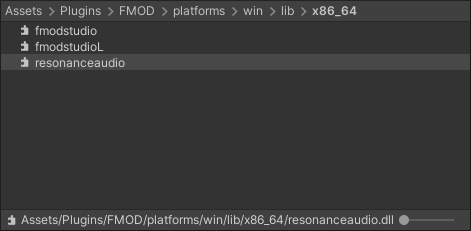
Dynamic plugins are defined in native dynamic libraries, each of which can contain one or more plugins (for example, "resonanceaudio.dll" contains the Windows versions of the ResonanceAudio plugins). Each platform requires its own version of the dynamic library; put this in the corresponding platform folder under Assets/Plugins/FMOD/platforms/{Platform}/lib, next to the FMOD libraries.
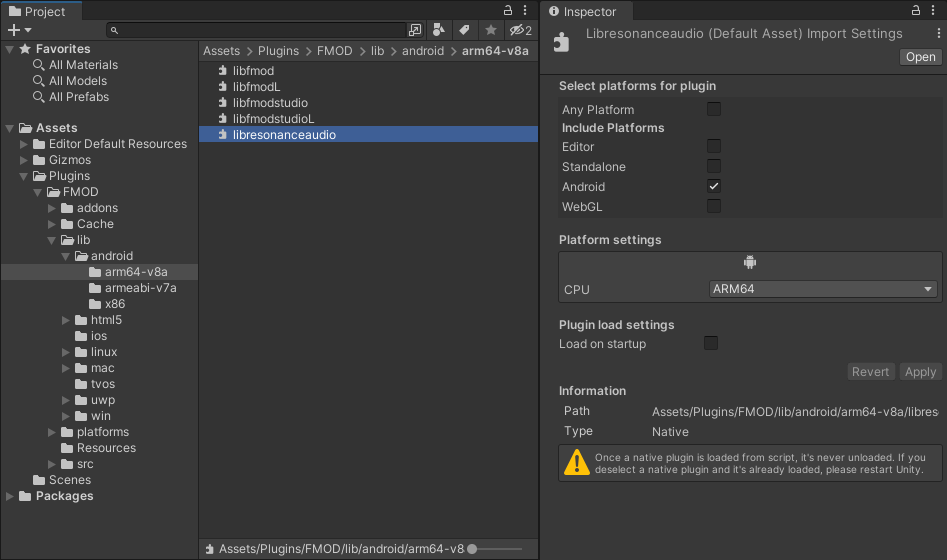
You need to change the plugin's import settings to match the platform and CPU architecture that the plugin is compiled for. To do this, select the plugin in the Unity Editor to display its import settings in the inspector window. Then tick the plugin's target platform in the "Include Platforms" list and untick all the other platforms. Finally, set the target architecture in the "CPU" dropdown to match your plugin's target architecture, and click on the "Apply" button to save the changes to the plugin's import settings. Here is an example of the import settings for a plugin compiled for the Android platform with an ARM64 CPU architecture:
The Dynamic Plugins list in the FMOD for Unity settings specifies which dynamic plugins to load at initialization time. Add the name of the plugin's dynamic library without the extension (for example, "resonanceaudio" instead of "resonanceaudio.dll"), and FMOD will determine which file to use based on the current platform.

9.2 Static Plugins
FMOD for Unity supports loading static plugins when running on the IL2CPP scripting backend. This is the only way to load plugins on platforms that don't support dynamic libraries (such as iOS, tvOS, and Nintendo Switch).
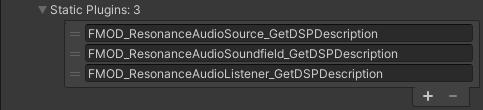
The Static Plugins list in the FMOD for Unity settings specifies which static plugins to load at initialization time. Add the name of the plugin's _GetDSPDescription function or functions (for example, FMOD_ResonanceAudioSource_GetDSPDescription, FMOD_ResonanceAudioSoundfield_GetDSPDescription, and FMOD_ResonanceAudioListener_GetDSPDescription), and FMOD will generate C# code to load the plugin.
Static plugins must be statically linked into the executable. You can implement this by including source code or static libraries in your Unity project.
9.2.1 Source Code
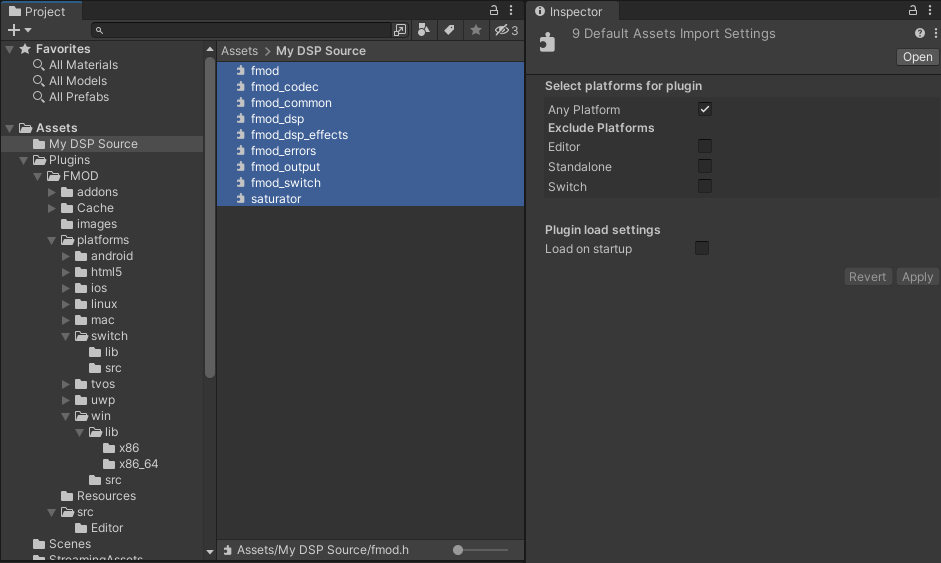
To include a plugin in your Unity project as source code, the plugin must be written in C++. Place the C++ source files, including any of the necessary includes, in a location of your choice within the Assets folder, and Unity will automatically build these files and link them into the executable. Unlike Dynamic Plugins, statically loaded source code plugins can be left with the default platform settings of "Any Platform".
9.2.2 Static Libraries
To include a plugin in your Unity project as static libraries, you will need a static library for each platform. Put these static libraries in the corresponding platform folders under Assets/Plugins/FMOD/platforms/{Platform}/lib, next to the FMOD libraries.
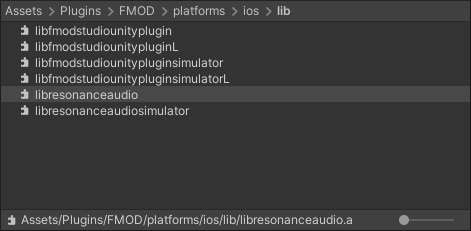
As with Dynamic Plugins, you also need to change the plugin's import settings to match the platform and CPU architecture that the plugin is compiled for.